Tutorial · Azure DevOps
Running UI Tests on a Self-Hosted Azure Pipelines Agent on an Azure VM
Set up an Azure VM as a self-hosted Azure Pipelines agent for browser-based UI tests, so they can reach internal test environments and run on a machine you control.
In this article7 sections
Microsoft-hosted agents are great for unit and API tests: every run gets a fresh, fully loaded VM and there’s nothing to look after. UI tests are where they start to hurt. The test environment sits behind a firewall the hosted agent can’t reach, the browser version changes under you from one week to the next, and a long regression pack runs into the job time limit.
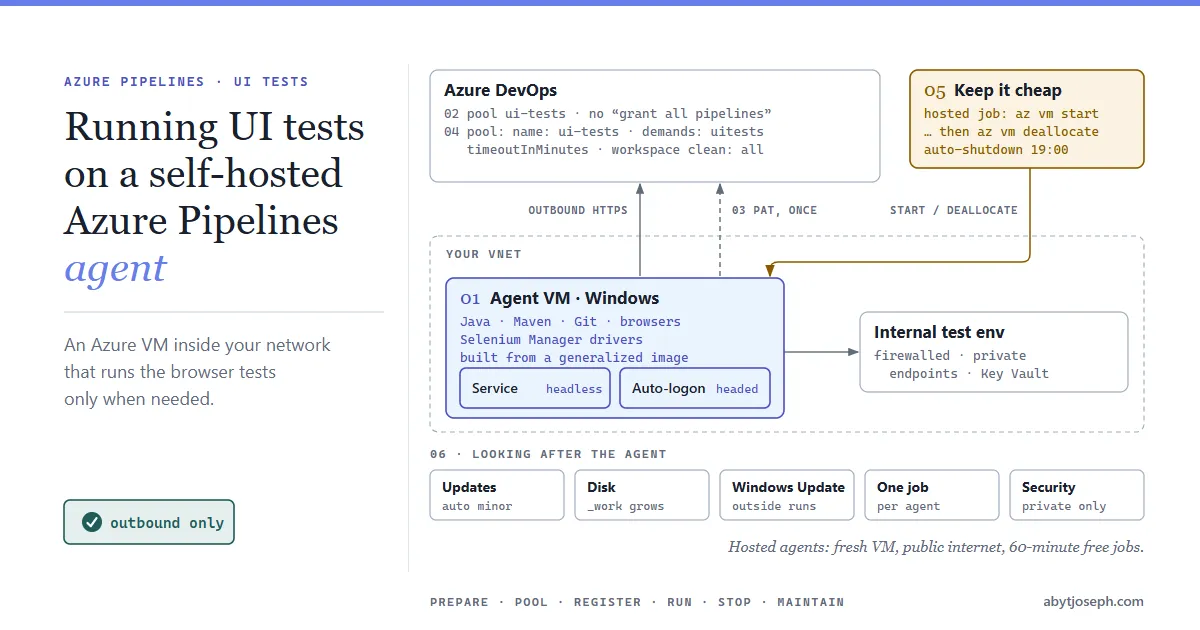
We will see in this article how to turn an Azure VM into a self-hosted agent for UI tests, register it with Azure DevOps, point the pipeline at it, and keep it from costing money when it isn’t running anything.
| Microsoft-hosted agent | Self-hosted agent on an Azure VM | |
|---|---|---|
| Machine | Fresh VM for every job | Your VM, kept between runs |
| Software | Microsoft’s image, updated regularly | Whatever you install, at versions you choose (pin browser auto-update by policy if versions matter) |
| Network | Public internet only, no fixed IP | Your VNet: can reach internal test environments, private endpoints and firewalled Key Vaults |
| Job time limit | 60 minutes on the free tier for private projects | No limit beyond the job timeout you set |
| Maintenance | None | Patching, disk space, agent updates |
| Cost | Included minutes, then parallel jobs | One self-hosted parallel job is free; you pay for the VM |
Prepare the VM
Create a Windows VM (Windows Server, or Windows 11 if you have an eligible licence for it on Azure) in a virtual network that can reach your test environment, and install what the tests need: Java, Maven, Git and the browsers. A VM size with 4 vCPUs and 16 GB of memory is a reasonable start for one agent running browser tests.
Two things worth doing from the start:
- No inbound ports. The agent makes outbound HTTPS connections to Azure DevOps; nothing needs to connect to the VM. Use Azure Bastion or a just-in-time rule when you need to RDP in, not an open port 3389.
- Build it from an image. Once the VM is set up the way you want it, capture it as a generalized image. Capture the image before you register the agent, from a copy of the VM (generalizing makes the source VM unusable). Rebuilding or adding a second agent is then an
az vm createplus oneconfig.cmdwith its own agent name, not an afternoon of installing software.
With Selenium 4.6 or later, Selenium Manager downloads the matching driver for the installed browser automatically, so you no longer need to keep chromedriver.exe in step with Chrome by hand. Selenium Manager needs outbound HTTPS to the driver download sites (or a proxy via SE_PROXY). On a locked-down VNet, pre-install the drivers in the image or allow those endpoints.
Create an agent pool
Agents are grouped in pools, and pipelines ask for a pool.
- In Azure DevOps, go to Project settings >> Agent pools >> Add pool. This creates the pool in the organization and links it to the project. (If you create it in Organization settings instead, keep Auto-provision this agent pool in all projects checked, or add the pool in each project’s settings.)
- Choose Self-hosted, name it
ui-tests, and leave Grant access permission to all pipelines unchecked. - Under the pool’s Security, check that the account you will register the agent with is an Administrator of the pool.
Register the agent
Registration needs a credential with permission to add agents to the pool. The simplest is a personal access token (PAT) with only the Agent Pools (Read & manage) scope and a short expiry. It’s used only during registration; afterwards the agent authenticates with its own credentials, so the PAT can expire or be revoked. If your organization restricts PATs, the agent can also register with a service principal (--auth SP, agent 3.227.1 or later) or device code flow.
On the VM, open the pool in Azure DevOps, select New agent >> Windows, download the agent zip and extract it to C:\agents (a path without spaces). Then, in an elevated PowerShell window (not PowerShell ISE), configure it in one of the two modes below: as a service, or interactive with auto-logon. If you already configured the agent one way, run .\config.cmd remove before configuring it the other way.
cd C:\agents

.\config.cmd --unattended `
  --url https://dev.azure.com/<your-organization> `
  --auth pat --token <PAT> `
  --pool ui-tests `
  --agent vm-uitest-01 `
  --runAsService `
  --windowsLogonAccount "NT AUTHORITY\NETWORK SERVICE"
The agent is now a Windows service that starts with the VM, and it shows as Online under Agents in the pool.
Service or interactive?
This is the decision that matters most for UI tests:
- As a service (above): recommended, and fine for headless browsers. Chrome and Edge run headless without a desktop session, which covers most Selenium and Playwright suites.
- Interactive with auto-logon: needed when tests require a real desktop, such as headed browsers, screenshots of the full screen, or desktop apps (WinAppDriver and similar). Windows signs in automatically after boot and the agent runs in that session.
For auto-logon, first create the local account the agent signs in as. Its password must not expire, or auto-logon stops working when it does (the default maximum password age is 42 days):
New-LocalUser -Name uitest -PasswordNeverExpires # prompts for the passwordThen configure the agent (instead of the service block above):
$env:VSTS_AGENT_INPUT_WINDOWSLOGONPASSWORD = [System.Net.NetworkCredential]::new('', (Read-Host -AsSecureString 'uitest password')).Password

.\config.cmd --unattended `
  --url https://dev.azure.com/<your-organization> `
  --auth pat --token <PAT> `
  --pool ui-tests `
  --agent vm-uitest-01 `
  --runAsAutoLogon `
  --windowsLogonAccount "$env:COMPUTERNAME\uitest" `
  --noRestart

Remove-Item Env:VSTS_AGENT_INPUT_WINDOWSLOGONPASSWORD
Any config.cmd option can be passed as an environment variable named VSTS_AGENT_INPUT_<OPTION>, which keeps the Windows password off the command line. Reading it with Read-Host -AsSecureString and removing the variable afterwards keeps it out of your history and out of child processes too. The same works for the PAT with VSTS_AGENT_INPUT_TOKEN.
Without --noRestart, the VM restarts 15 seconds after configuration finishes and your RDP session drops. With it, restart the VM yourself when you’re ready, so auto-logon takes effect.
Point the pipeline at the agent
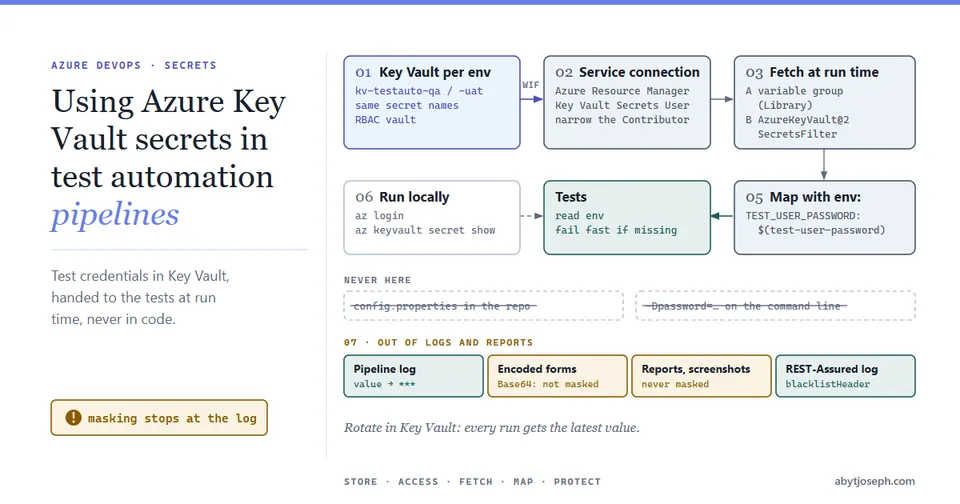
Use the pool by name. Add a custom capability to the agent (Agents >> your agent >> Capabilities >> User-defined capabilities, for example uitests = true) and demand it, so the job never lands on an agent without browsers. Capabilities also include all environment variables, so setting a machine environment variable uitests=true in the image does the same job and survives rebuilds:
jobs:
  - job: UiTests
    timeoutInMinutes: 180
    pool:
      name: ui-tests
      demands:
        - uitests
        - Agent.OS -equals Windows_NT
    workspace:
      clean: all
    steps:
      - script: mvn -B test -Dheadless=true   # read by the test code
        displayName: Run UI tests

      - task: PublishTestResults@2
        condition: succeededOrFailed()
        inputs:
          testResultsFormat: JUnit
testResultsFiles: '**/target/surefire-reports/TEST-*.xml'timeoutInMinutes: the default job timeout is 60 minutes; set it to what the regression pack needs, plus a margin.-Dheadless=trueis a custom system property: it only works if your test code reads it and adds--headlessto the browser options.workspace: clean: all: the agent keeps its work folder between runs. Cleaning it stops leftovers from the last run (old reports, screenshots, downloaded files) from leaking into this one.
The first run waits for someone to Permit the pipeline to use the pool.
Keep it cheap: run the VM only when needed
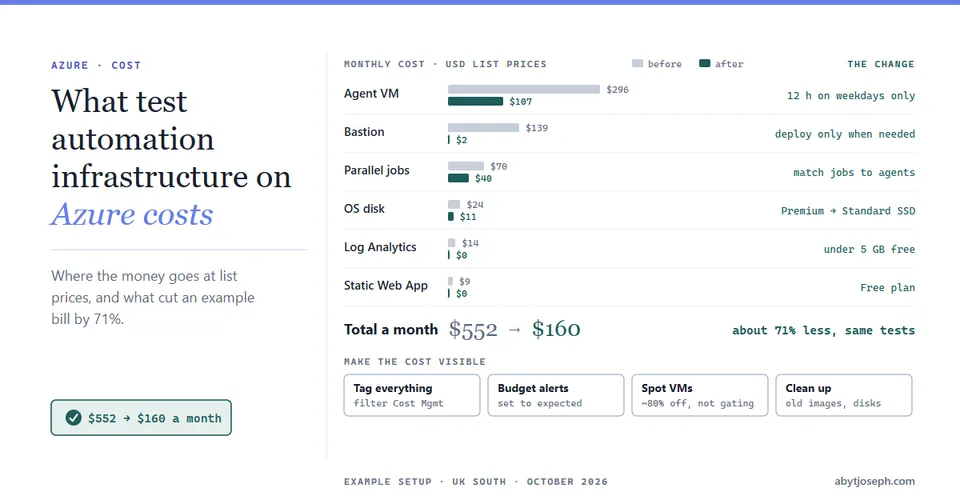
A VM that runs all day for a nightly regression pack is mostly paying for idle time (what test automation infrastructure on Azure actually costs puts numbers on it). Start it from the pipeline, stop it when the tests finish, and keep an auto-shutdown as a safety net.
Shut it down every evening with the built-in auto-shutdown, in case a run doesn’t stop it:
az vm auto-shutdown -g rg-test-agents -n vm-uitest-01 --time 1900The time is in UTC.
Start it from the pipeline before the UI tests, in a small job on a Microsoft-hosted agent. Give the service connection a custom role scoped to the VM with only Microsoft.Compute/virtualMachines/read, Microsoft.Compute/virtualMachines/start/action and Microsoft.Compute/virtualMachines/deallocate/action. Virtual Machine Contributor is the quick alternative, but it’s much broader: it can also run scripts on the VM and reset passwords, so anyone who can edit a pipeline using that service connection could run commands on the agent inside your network.
The last job deallocates the VM after the tests, whether they passed or failed:
jobs:
  - job: StartAgentVm
    pool:
      vmImage: ubuntu-latest
    steps:
      - task: AzureCLI@2
        inputs:
          azureSubscription: sc-test-automation
          scriptType: bash
          scriptLocation: inlineScript
          inlineScript: az vm start -g rg-test-agents -n vm-uitest-01

  - job: UiTests
    dependsOn: StartAgentVm
    pool:
      name: ui-tests
    # ... as above

  - job: StopAgentVm
    dependsOn: UiTests
    condition: always()
    pool:
      vmImage: ubuntu-latest
    steps:
      - task: AzureCLI@2
        inputs:
          azureSubscription: sc-test-automation
          scriptType: bash
          scriptLocation: inlineScript
          inlineScript: az vm deallocate -g rg-test-agents -n vm-uitest-01 --no-wait
The agent service starts with Windows, so the UI test job is picked up once the VM has booted. Jobs queued for an offline pool wait for an agent rather than failing.
Looking after the agent
- Agent updates: minor-version updates are automatic by default (the setting can be switched off per pool). Interactive agents and major-version upgrades may need Update all agents from the pool.
- Disk space:
_workgrows with every pipeline that runs on the agent. Workspace cleaning helps, and the pool’s maintenance job (pool Settings) can clean stale working directories periodically; check the disk now and then. - Windows Update: a reboot from an update during a run fails the job with “The job has been abandoned because agent did not renew the lock”. Schedule updates outside the test window, and turn off sleep.
- One job at a time. An agent runs one job at a time. You can install several agents on one VM, but UI tests sharing one desktop tend to interfere with each other. Add VMs instead.
- Security: the agent runs whatever the pipeline YAML tells it to, on a machine inside your network. Use it for private projects only, limit who can edit pipelines that use the pool, and don’t run the agent as an administrator.
When one or two VMs aren’t enough, Azure DevOps can manage a pool of agent VMs for you, scaling them from your image, with Managed DevOps Pools or Virtual Machine Scale Set agents. The image carries over; expect to change the pool name and demands.
Common issues
- “No agent found in pool ui-tests which satisfies the specified demands”, followed by the list of demands. No agent in the pool has a demanded capability, so the job fails straight away. Check the agent’s Capabilities tab. Capabilities are read when the agent starts, so restart the agent after installing new software.
- The job sits in the queue with “All eligible agents are disabled or offline”. A matching agent exists but isn’t connected: the VM is stopped or the agent service isn’t running. The job waits until the agent comes online.
- Tests pass when you’re connected over RDP and fail overnight. The desktop session is locked. Use auto-logon and disconnect with
tscon, or run the browser headless with the agent as a service. - Screenshots are blank or tiny in headless mode. Headless browsers default to a small window. Set the window size explicitly, for example
--window-size=1920,1080for Chrome. - The agent shows offline after you changed the service account in
services.msc. Don’t change it there. Run.\config.cmd removeand configure the agent again with the new account. - Registration fails with an authorization error. The PAT doesn’t have the Agent Pools (Read & manage) scope, has expired, or the account isn’t an administrator of the pool.
Hope that was helpful! :)